In about two minutes, Claude can use Idiolect AI whenever it writes for you. You connect once, and the connection works on claude.ai, in the Claude desktop app and in Cowork. It works on every Claude plan. On a Team or Enterprise plan, an Owner must first turn the connector on for your organisation.
Most problems come after the connection, not during it. Claude is connected, but in the chat you are using it can't see Idiolect AI. If that is you, skip to the section Connected, but Claude isn't using it? below.
In Claude's directory and connector lists, Idiolect AI shows as "Idiolect".
Connect
- Go to idiolect.app/connect and choose Claude.
- Open the Idiolect AI connector in the Claude directory.
- Select Connect on that page.
- Sign in to Idiolect AI with the email you use on idiolect.app.
Check the email under Signed in as. If it is the wrong account, select Use a different account.
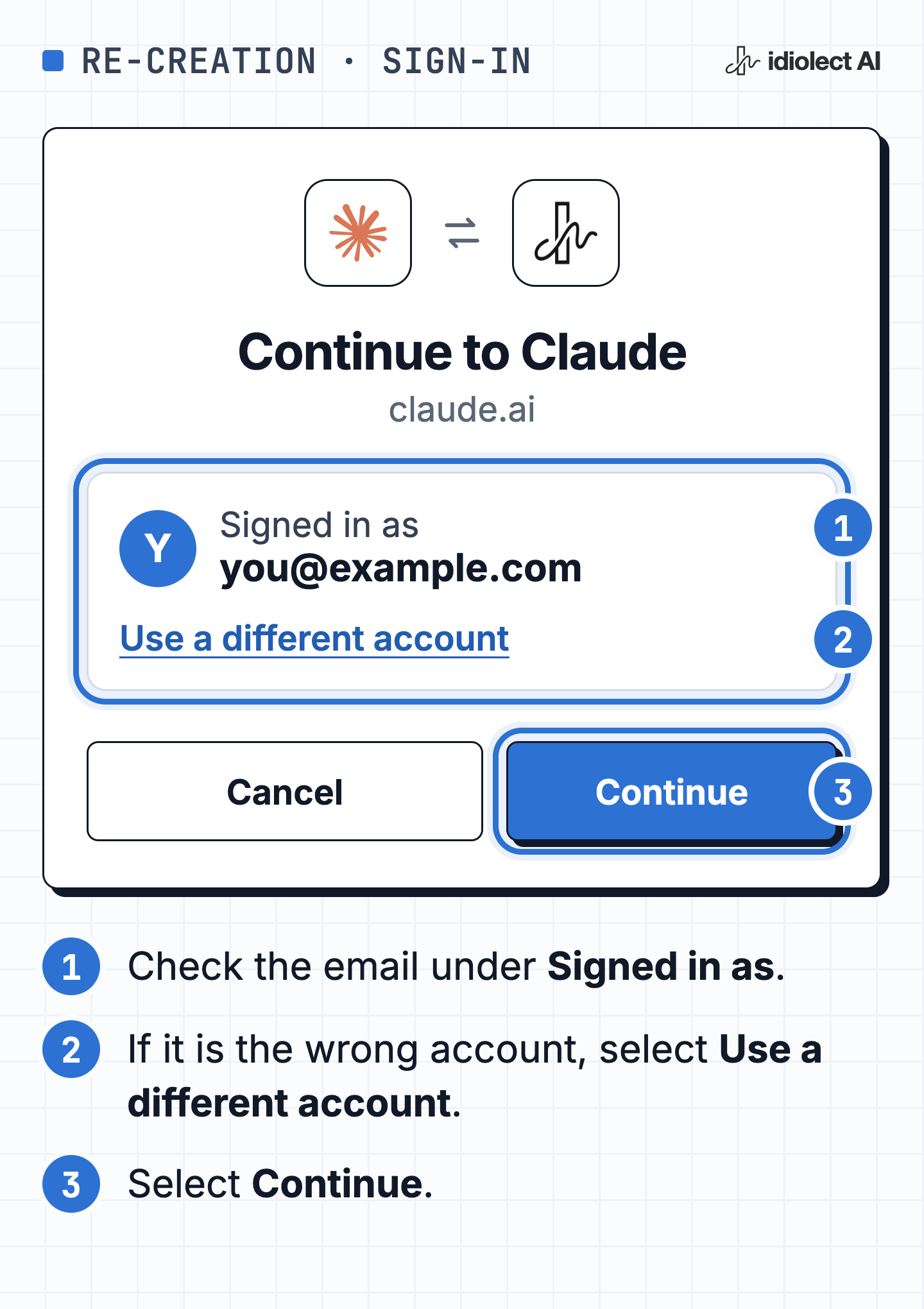
A re-creation of the sign-in page, built from its own code. The email is an example. - Select Continue.
- The first time, Claude asks you to allow access. Allow it.
- Wait on the Connecting page. This takes up to 15 seconds. Keep the tab open.
You only do this once. The same connection works in a chat on claude.ai, in the desktop app and in Cowork, because they all use your Claude account.
Use Claude Code too? Sign in to it with the same Claude account. See Idiolect AI in Claude Code, Codex and Cursor.
Your first request
- Start a new chat in Claude, or a new task in Cowork.
- Select + in the message box, then Connectors.
- Check that Idiolect AI is switched on.
- Copy this request, put a sentence you wrote in the brackets, and send it:
Use Idiolect AI to rewrite this sentence: [a sentence that you wrote]After that, ask the way you always do. "Reply to this email and say yes to Thursday" is enough. You don't have to name Idiolect AI. Claude shows you the writing, and nothing is sent for you.
More first requests to copy are in Your first draft in your own voice.
Connected, but Claude isn't using it?
Work down this list. Stop when it works.
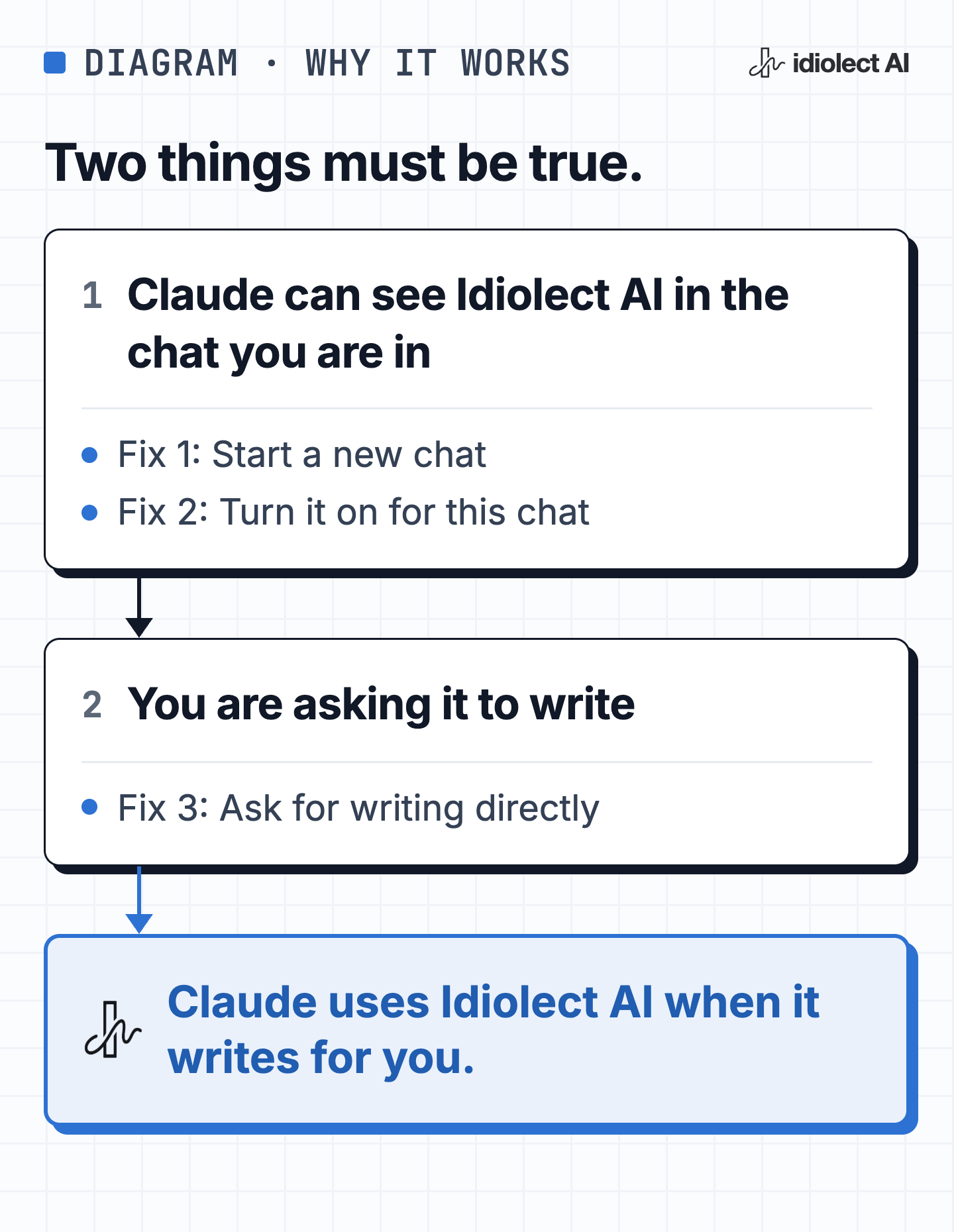
1. Start a new chat. A chat that was open before you connected may not see Idiolect AI. A fresh chat or a new Cowork task does.
2. Turn it on for this chat. Claude turns connectors on one conversation at a time. Select + in the message box, then Connectors, and switch Idiolect AI on.
3. Ask for writing directly. Claude uses Idiolect AI when it writes for you: an email, a message, a post, a reply. When you ask it something else, such as a question, it has no reason to. If you're not sure, name it once:
Use Idiolect AI to write a short reply to this: [paste the message]4. Claude asks you to sign in again, or says you have no Writing Profile. See Reconnecting and other connection fixes.
5. It says you have no words left. See your words on idiolect.app/settings/plan.
Still stuck? Write to us at idiolect.app/support.
Why it works
Idiolect AI gives Claude a standing instruction: when you write for this person, use Idiolect AI. Claude decides when that applies. So two things must be true. Claude must be able to see Idiolect AI in the chat you are in, and you must be asking it to write. The list above checks the first, then the second.
Next
Your first drafts will be close but not perfect. Teach Idiolect AI with your edits and rules shows how one sentence from you fixes every draft after it.