Most connection problems take about a minute to fix. Find the message or problem you see, then follow the steps under it.
Idiolect AI isn't showing in the chat
- Start a new chat. Some apps only pick up a new connector in a fresh chat.
- Check that your AI app will use Idiolect AI in this chat. In ChatGPT, name Idiolect AI in the request, for example "Use Idiolect AI to reply to this email". In Claude and Cowork, select + in the message box, then Connectors, and check that Idiolect AI is switched on. Claude lists it as "Idiolect".
- Ask for a piece of writing directly, for example "reply to this email for me".
If it still isn't there, reconnect, as in the next section.
Your AI app asks you to sign in again
The connection expired or was never finished. Reconnect it.
In ChatGPT
- Start a new chat.
- Type
reconnect Idiolect AIand send it. - Follow the steps that ChatGPT shows.
In Claude or Cowork
- Start a new chat.
- Type
reconnect Idiolect AIand send it. - Select Connect.
If that doesn't work, open the Idiolect AI listing in the Claude directory. Select Disconnect, then select Connect.
In Claude Code
- Type
/mcp. - Select Idiolect AI.
- Select Authenticate.
In any other app, remove the connector, add it again, and finish the sign-in.
You may also see this message in the middle of a request: "Your Idiolect AI sign-in expired during this request. Sign in again, then retry." Reconnect as above, then ask again.
"This connection request has expired"
A connection request stays open for 10 minutes. If you take longer to sign in, it expires.
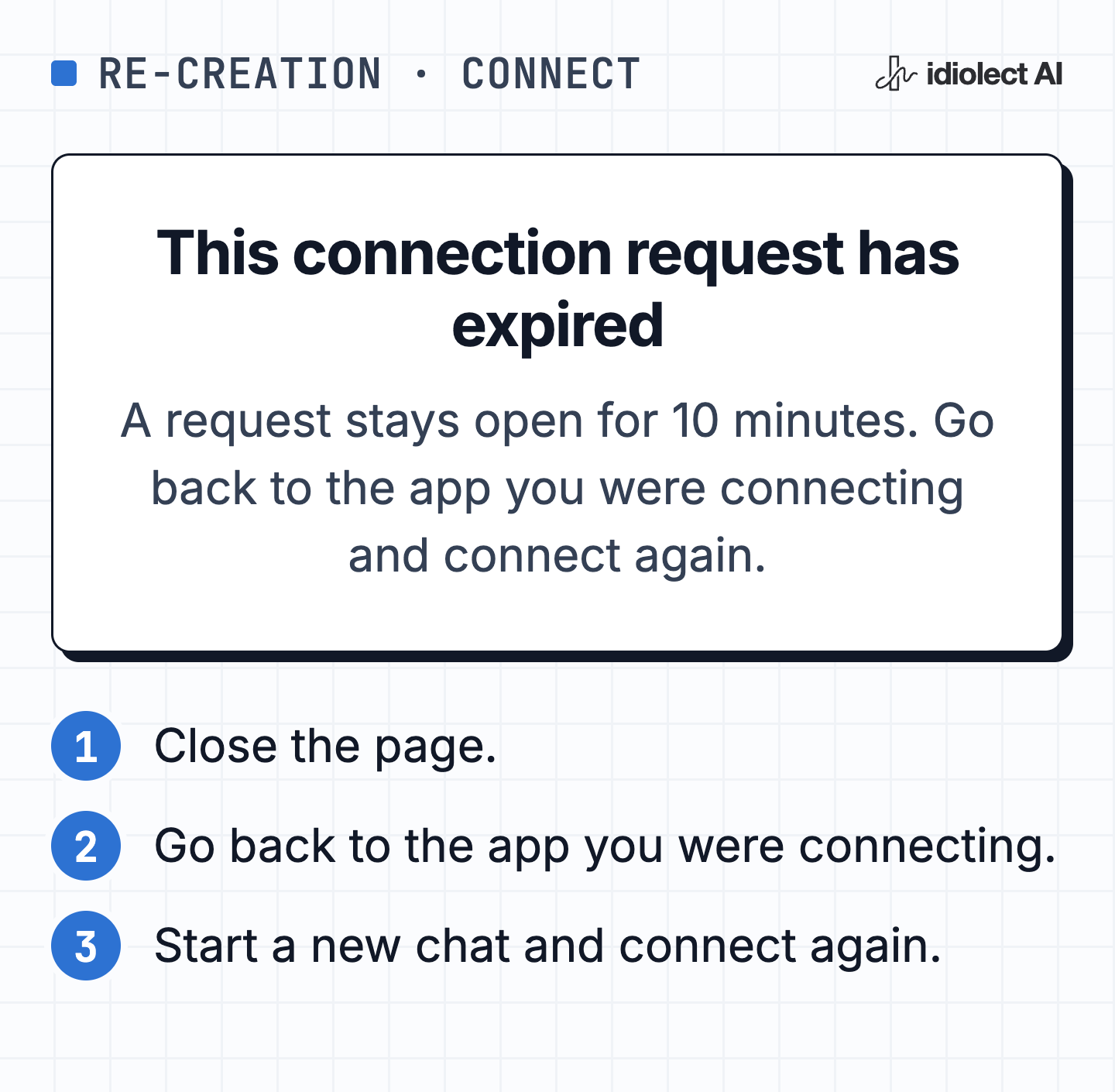
- Close the page.
- Go back to the app you were connecting.
- Start a new chat and connect again.
The same fix works for "This connection request is not valid" and "The connection did not finish". If you see "The connection did not finish", your account did not change.
The sign-in link in your email has expired
Each sign-in link works one time only. If you opened it already, or opened an old one, you see LINK EXPIRED.
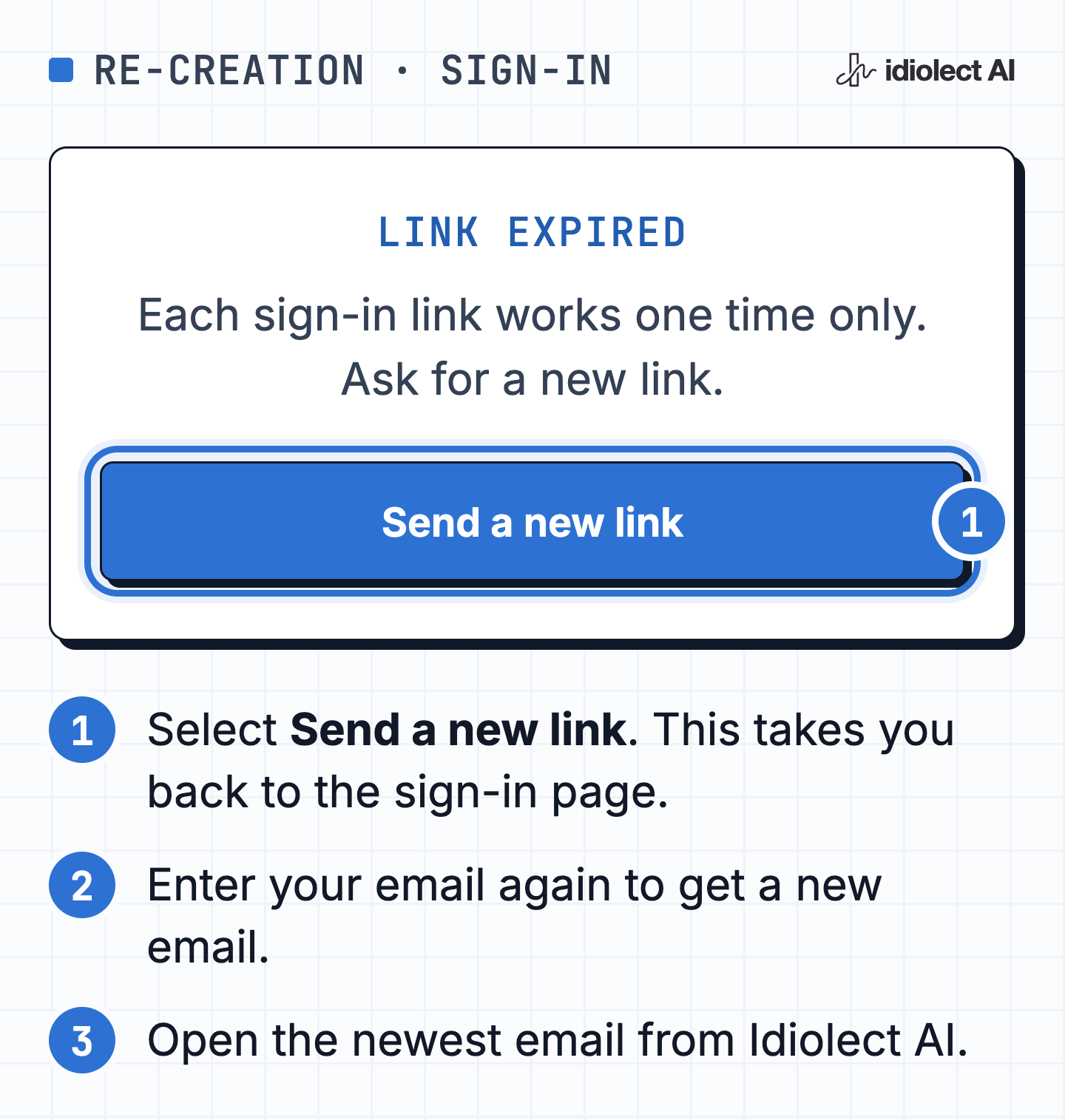
- Select Send a new link. This takes you back to the sign-in page.
- Enter your email again to get a new email.
- Open the newest email from Idiolect AI.
- Open the link, or type the 6-digit code from the same email.
The code is useful when the email opens on a different device from the one you are signing in on.
You connected with the wrong account
If your AI app says you have no Writing Profile, but you made one on idiolect.app, you are probably signed in with a different email.
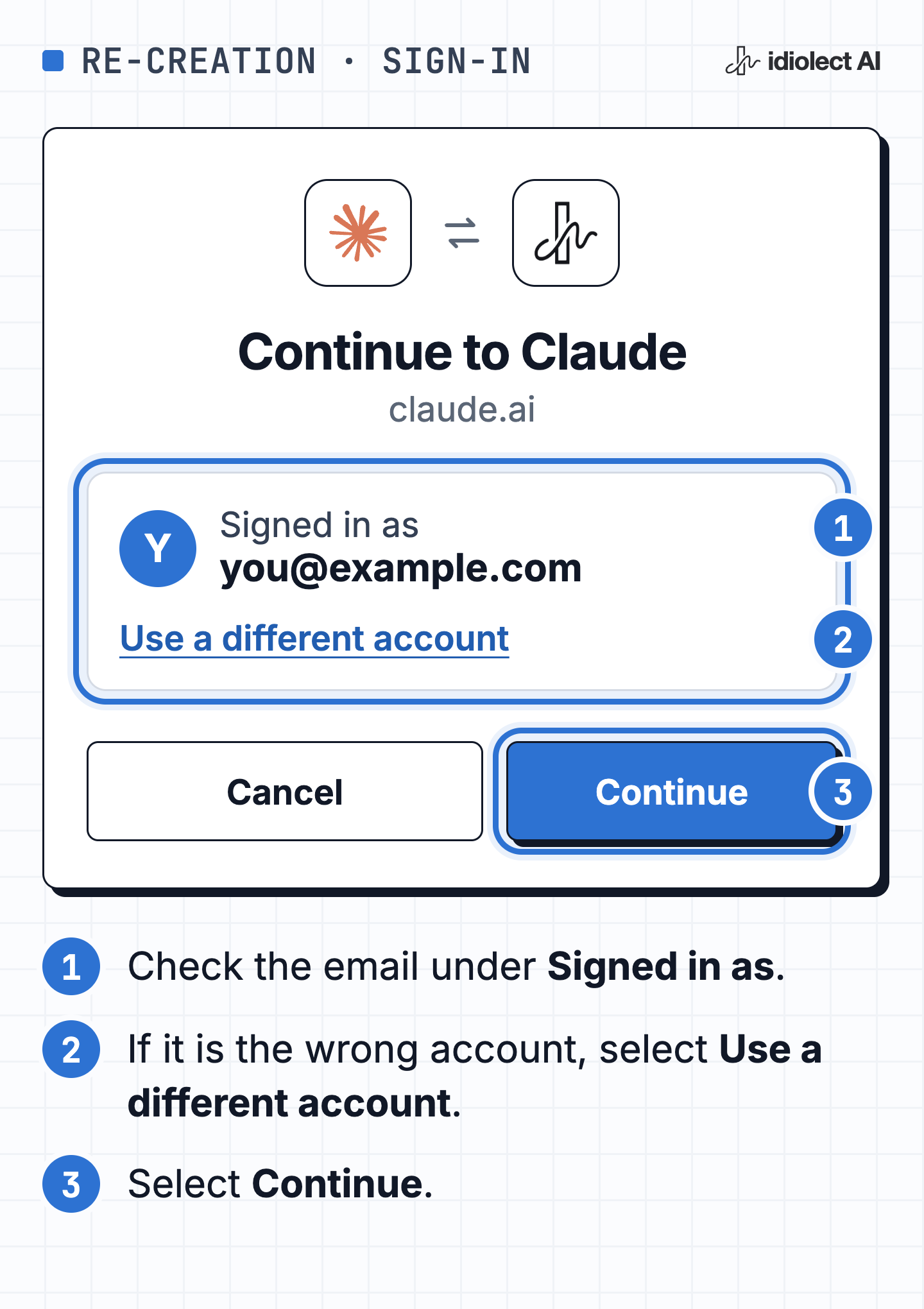
- Reconnect, as in "Your AI app asks you to sign in again".
- On the page that says Continue, read the email under Signed in as.
- If it is wrong, select Use a different account and sign in with the right one.
- Select Continue.
Your AI apps write with the Writing Profile that is set as your default. You can change the default on idiolect.app.
"Verify your email address"
Your account needs a verified email address before you can connect it. Open the link in the email that Idiolect AI sent you, or enter the 6-digit code from it. Then connect again.
The "Connecting" page doesn't move on
The page normally takes up to 15 seconds. Keep the tab open. After a few seconds it may say "This is taking longer than usual." If it does, select the Continue to button under that message. It shows the name of your app, for example Continue to Claude.
"Rate limit reached"
You asked for a lot of writing in a short time. Wait five minutes, then ask again.
Why it works
Your AI app keeps your Idiolect AI sign-in for you. When that sign-in expires, the app can't reach Idiolect AI. A chat that started before you connected may not see Idiolect AI at all. Each fix on this page gives the app a fresh chat or a fresh sign-in.
Still not working?
Tell us what you see at idiolect.app/support. Choose Something does not work. You don't have to sign in to send a message.
Next
Once you're connected, make your first request. Your first draft in your own voice, in five minutes has three to copy.